You can now export your proposal as Markdown (.md), giving you the flexibility to use the content in your own Word template. If your customised 1KE Word template has formatting issues, this gives you another way to prepare the customer document.
For Word, use the quick download icon beside the proposal name. For Markdown, open Manage deal artifacts and choose Export as Markdown from the proposal row’s menu. You receive a ZIP containing the .md file and its diagrams.
This guide starts with a proposal that has already been generated. Review the selected version before using it in a customer document.
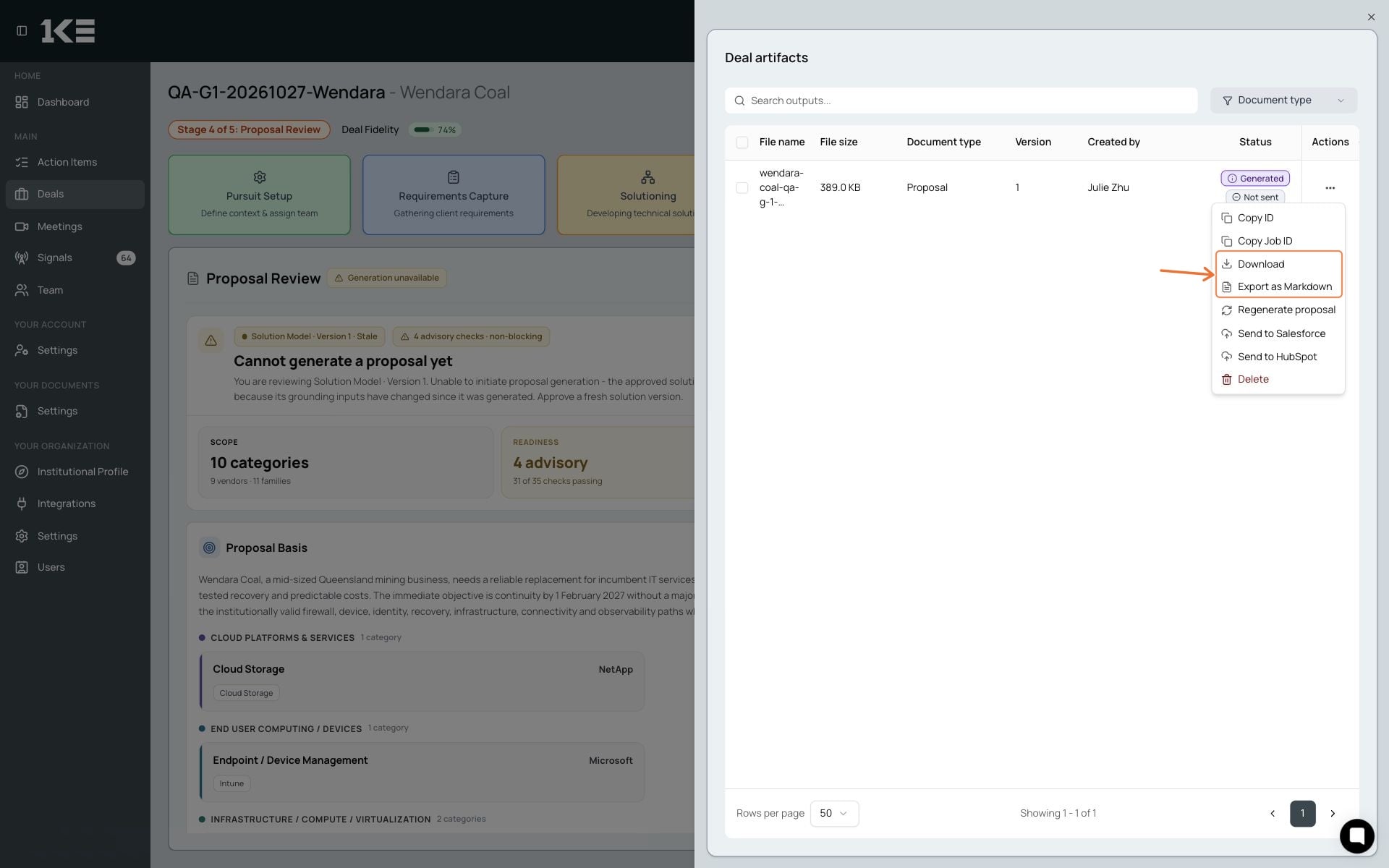
Open your deal from Deals and select Proposal Review. Proposals are generated here from the approved solution model. If your proposal already exists, go straight to its files.
For a quick Word download: in the right-hand Deal Artifacts panel, click the download icon to the left of the proposal name, under Recent generated artifacts.
To export Markdown or choose a version: select Manage deal artifacts below the proposal card. This opens the generated outputs table.
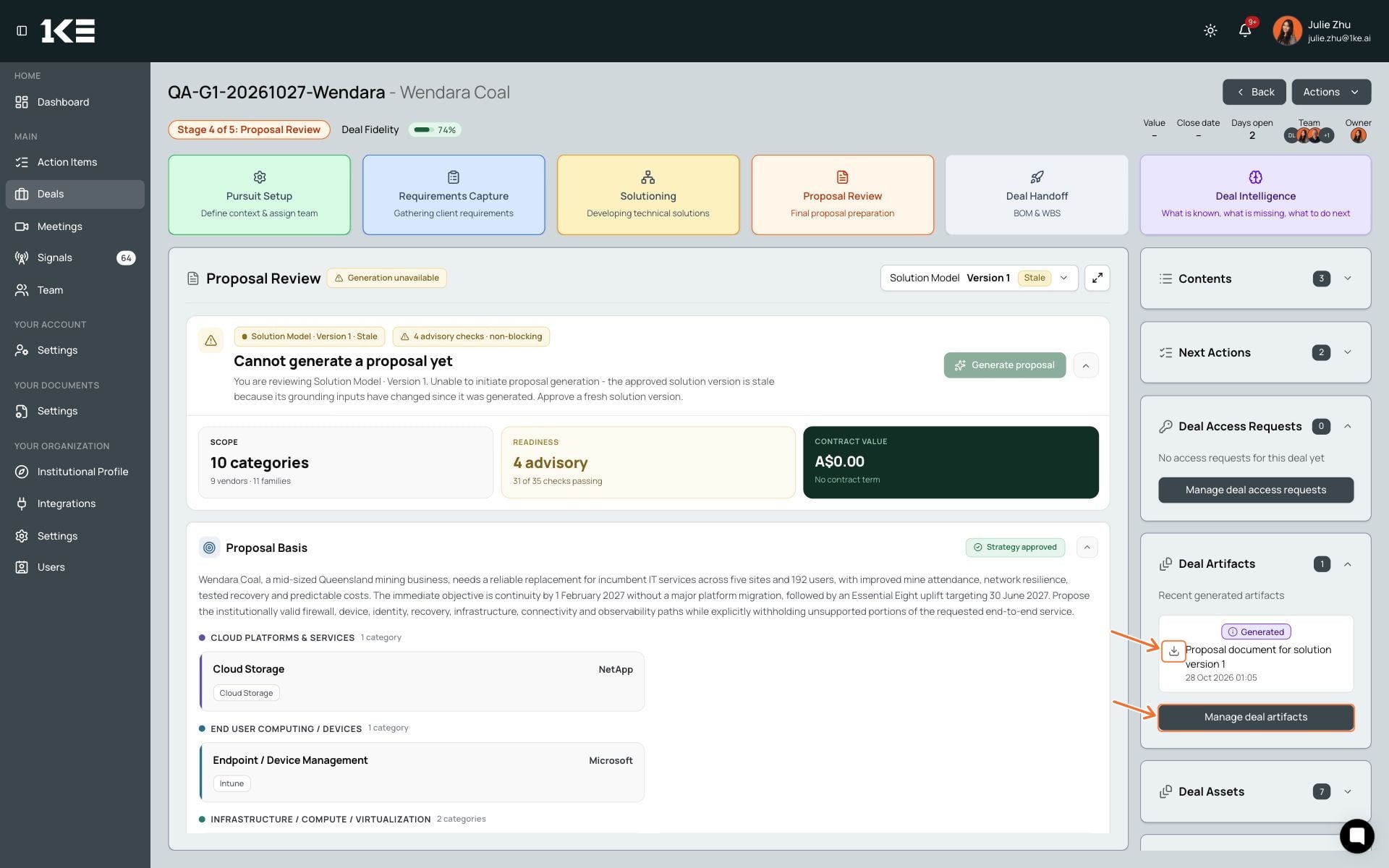
Find the row with Document type: Proposal. Check its Version, creation date (scroll the table horizontally if needed) and Generated status so you export the version you intend to use. Use Search outputs... or the Document type filter if the table contains several files.
Open the three-dot menu in that row’s Actions column.
Open the proposal row’s three-dot Actions menu and choose:
Download for the generated Word (.docx) proposal. This is also available from the quick download icon shown in step 1.
Export as Markdown for a ZIP containing the proposal as a .md file and its diagrams. This lets you reuse the proposal content in your own Word template, including when you need to work around formatting issues in your customised 1KE template.
The download window opens automatically when the file is ready. If your browser asks where to save it, choose a location and select Save. Depending on your browser settings, the file may save directly to your Downloads folder instead.
For Markdown, wait while 1KE prepares the export before the download begins.
Extract the ZIP, then open the .md file in a Markdown editor or import it into your document tool. Markdown is plain text with simple formatting for headings, lists, links and tables; its appearance depends on the tool you use.
The ZIP includes a diagrams/ folder when diagram files are included. Keep this folder beside the .md file. The proposal uses relative paths to these local files, so moving the Markdown file on its own can break the diagram links.
Open the .md file in a tool that renders Markdown, then copy the rendered content into your company’s Word template, or use your document tool’s conversion workflow. Add the diagrams from the accompanying folder where needed, and apply your template’s heading and table styles. This is a separate step after export; the ZIP does not automatically populate a Word template.
If you share the Markdown source with a colleague, share the ZIP or the complete extracted folder. If you apply a company template or convert to another format, review the resulting layout, tables and diagrams before sending it to the customer.
Check the proposal’s scope, assumptions, pricing and review status as part of your final review. Any draft warning in the exported document still applies.
The ZIP keeps the Markdown text and diagram files together. After extraction, the relative diagram links point to files in the accompanying diagrams/ folder, without needing a 1KE sign-in to open those local files.
No. Markdown carries the content in a portable text format. Your editor or document tool controls how it looks, so check formatting after importing or converting it.
Open the proposal row’s three-dot menu in Manage deal artifacts. The option is available for proposal outputs; it is not on the small download icon in the Deal Artifacts panel. Check that you have selected a generated Proposal row.
No. Exporting downloads the selected proposal’s content. It does not approve the proposal or remove the need to review it. Check any draft warning and resolve outstanding review points before sending it.